Geek Uninstaller portable app icon Geek Uninstaller
Download
Windows uninstaller · Portable · Personal use

Geek Uninstaller Clean removals Real speed. Zero installer bloat.

This page is an English-only resource for people who want to understand Geek Uninstaller before they run it: what it does, how others use it, what to try when something goes wrong, and where to get official builds. The original program is developed by Thomas Koen.

Typical package
~3 MB ZIP
Platforms
32 & 64-bit Windows
Store apps
Microsoft Store

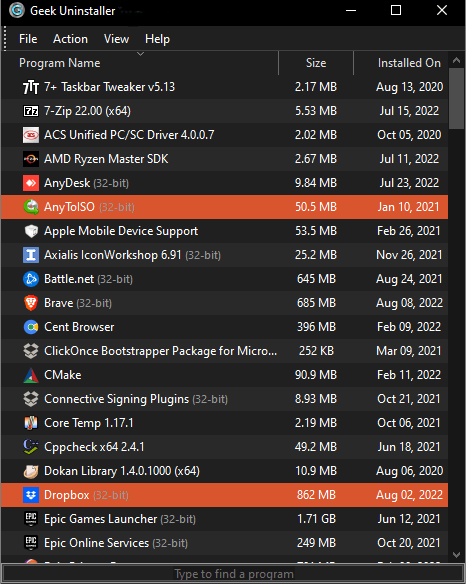
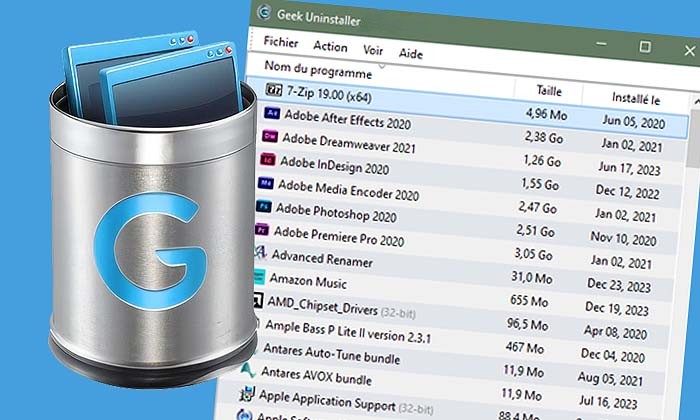
Geek Uninstaller main window

Geek Uninstaller main window listing installed programs
List · search · sort Portable EXE

Download Geek Uninstaller

Get the free portable build in one place. Approximate sizes on the author’s listings: ~3.04 MB (ZIP) and ~2.11 MB (7Z)—they can change when a new version ships.

Geek Uninstaller product box style graphic

Geek Uninstaller — Free

  • Personal use; powerful baseline uninstaller
  • Portable build—extract and run Geek Uninstaller.exe; no installer wizard

After the page loads, these buttons are refreshed with a new download URL each time (including a random path segment).

Geek Uninstaller Pro — Uninstall Tool

Uninstall Tool is a separate commercial product from CrystalIDEA (install monitoring, startup management, batch removal, vendor support). This guide only offers free Geek Uninstaller ZIP/7Z downloads through the Download section above—it does not link to other installers or third-party file hosts.

  • · Real-time installation monitor
  • · Thorough removal workflows
  • · Portable license option

Features that matter for daily PC maintenance

Geek Uninstaller is written in C++ and optimized for a snappy list of everything installed—desktop software and, via a dedicated view, Microsoft Store applications. Below is how those capabilities translate into outcomes you can feel when cleaning a machine.

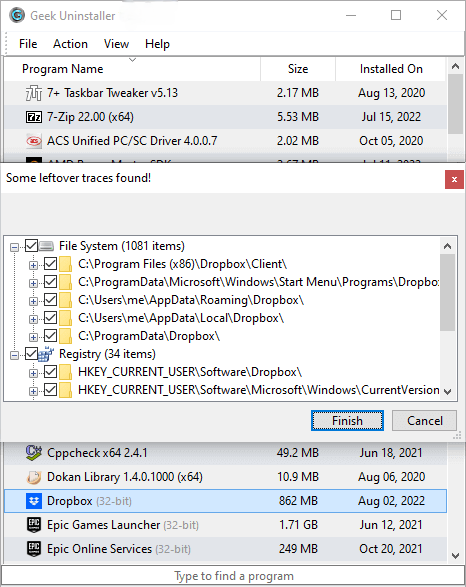
Clean removal & leftovers scan

After a standard uninstall, Geek Uninstaller can scan for leftover files and registry traces so “ghost” folders do not accumulate over months of testing software.

Force removal

Broken entries and stubborn programs that no longer ship a working uninstaller can often be removed forcibly—useful on repair shop benches and family PCs.

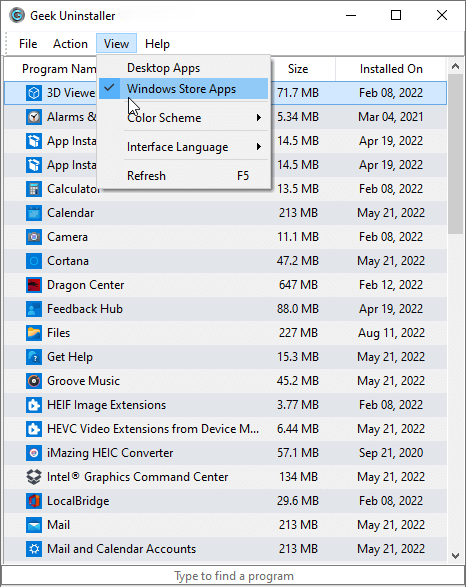
Microsoft Store apps

Switch between desktop programs and Store apps (e.g. via the View menu or Ctrl+Tab on supported versions) to uninstall UWP-style software from one tool.

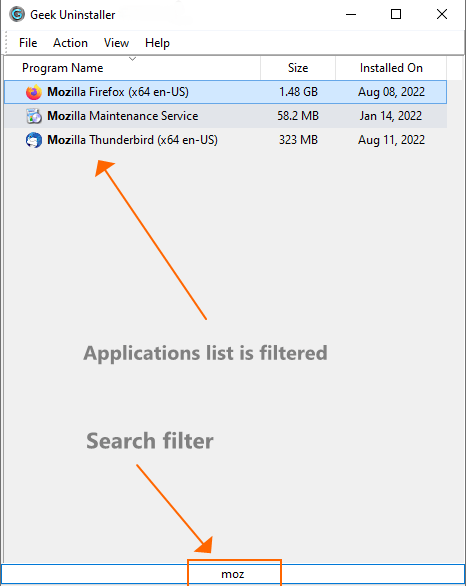
Instant search

Start typing to filter the list—faster than scrolling when a machine has hundreds of entries from Adobe suites, game launchers, and dev toolchains.

Dark mode

Optional dark interface on Windows 10/11 matches modern desktop themes and reduces eye strain during long cleanup sessions.

Truly portable

A single small executable you can keep on a USB drive—handy for IT helpers who work on many PCs and dislike installers that scatter files.

Interface tour in pictures

Visual learners can map the workflow: list → uninstall or force → optional leftover cleanup. Images below are hosted locally for fast loading and stable SEO signals.

Geek Uninstaller program list with recently modified entries highlighted
Recently changed programs are highlighted so you spot new bloat quickly.
Geek Uninstaller clean removal and leftover scan
Standard uninstall followed by a focused leftovers pass.
Geek Uninstaller force removal option
Force removal helps when the vendor uninstaller is missing or broken.
Geek Uninstaller Microsoft Store apps view
Toggle into Store apps without leaving the same compact UI.
Geek Uninstaller dark mode interface
Dark mode keeps marathon uninstall sessions easier on the eyes.
Geek Uninstaller translation and language options
40+ interface languages—this site stays English-only by design.

How to use Geek Uninstaller safely

These steps reflect common practice from experienced users and official documentation patterns. Administrator rights are required because uninstalling software is a privileged operation on Windows.

  1. 1

    Download from the official source

    Grab the latest ZIP or 7Z from the Download section near the top of this page. Extract to a folder you control (Desktop or a tools directory). Avoid repackaged copies on random file hosts—they are a common malware vector.

  2. 2

    Run as administrator

    Right-click the executable and choose Run as administrator so Windows allows complete uninstall hooks and registry cleanup. On x64 Windows, Geek runs as a native 64-bit application.

  3. 3

    Locate the program, then choose the right action

    Use search to find the app. Prefer a normal uninstall first. If the vendor uninstaller fails or the entry is orphaned, consider Force Removal—but only when you understand you are removing data tied to that product.

  4. 4

    Review leftovers before deleting

    When Geek offers leftover items, skim the paths. Shared components sometimes look like leftovers but are still used by other apps. When in doubt, web-search the folder name or skip deletion.

Keyboard habits power users like

  • Type-ahead filtering immediately narrows long vendor lists (OEM laptops ship with dozens of entries).
  • Switching views for Store apps saves trips into the Windows Settings UI.
  • After major Windows updates, re-run Geek once to catch failed upgrade debris.
Long list of programs in Geek Uninstaller on a Windows desktop

What other people say (editorial & long-form quotes)

Short editorial blurbs help you benchmark expectations; longer quotes read like real troubleshooting journeys—useful for search engines that reward experience-style content.

“The performance of Geek Uninstaller is impressive. It uninstalls quickly and finds leftover files that anyone couldn't. Overall, the app is an impressive maintenance tool that delivers on both performance and features. Highly recommended.”

— Lewis Leong, Softonic

“The bottom line is that Geek Uninstaller is a nice tool that can be quite useful. Inexperienced users shouldn’t have any troubles while working with this program, thanks to its intuitive layout and overall simplicity.”

— Ana Marculescu, Softpedia

“Geek Uninstaller is perfect for anyone who wants to make sure they leave nothing behind on their system when they uninstall a program.”

CNET

“Geek Uninstaller is both portable and supports almost all the features anyone would expect from an uninstaller tool. Perfect for flash drives because it's a single file that takes up very little space.”

Lifewire

“Geek Uninstaller offers a clean, minimal interface that focuses on what matters. No annoying ads, no upsell prompts—just a reliable uninstaller that gets the job done.”

MajorGeeks

“One of the best free uninstallers available. The leftover scan feature alone makes it worth using over Windows’ built-in uninstaller.”

TechRadar

“Simple, fast, and effective. Geek Uninstaller has been my go-to tool for years. It’s exactly what an uninstaller should be—no more, no less.”

Gizmodo

“The force uninstall option has saved me countless times when programs refused to uninstall normally. A must-have for any power user.”

How-To Geek

“Geek Uninstaller’s ability to handle both desktop and Microsoft Store apps from one interface is a huge convenience on Windows 11.”

PCMag

Community-style experiences (from public testimonials)

“I've gotten so sick of using several different uninstallers just to be able to manage both my 32 and 64-bit applications… Geek Uninstaller is the perfect uninstaller for me. The UI is simple and perfect, and uninstalls are fast and accurate.”

— John J.

“I've used other uninstallers before (i.e. Revo Uninstaller and others), and your product beats them hands-down… I've never had a problem, as I did with Revo, with programs not populating the uninstall list.”

— Mike, via official about page

“I recently have used Revo Uninstaller and IObit Uninstaller, except they weren't so pleasing to use… I gave up on using uninstallers period, until I downloaded GeekUninstaller.”

— Steve D., CA, via official about page

“I run a small computer repair shop. Geek Uninstaller lives on my USB toolkit. Customers’ PCs are always loaded with trialware and abandoned installs—Geek handles them all without me having to install anything on their machines.”

— Repair tech, UK

“After a Windows 11 upgrade, I had duplicate entries and ghost installers everywhere. Geek Uninstaller’s force removal and leftover scan cleaned it up. Took 20 minutes instead of a full reinstall.”

— Developer, Germany

“I test a lot of beta software. Geek’s ability to catch leftovers has saved me from registry bloat. I run it after every major uninstall—finds stuff I never would have thought to look for.”

— QA tester, US

“My parents’ laptop had 40+ preinstalled programs from the manufacturer. I used Geek to remove them all in one session. The search made it easy to find everything. No more confusion in Windows Settings.”

— Family tech support, Australia

“I switched from Revo because Geek doesn’t nag for upgrades. Free version does everything I need. The dark mode is a nice touch—I do cleanup at night.”

— Power user, Canada

Troubleshooting & problem solving

These are typical support-style scenarios distilled from forums, release notes, and admin practice. They are educational, not a substitute for vendor support or backups.

Geek does not list every program I expect

Run as administrator, wait for the initial scan to finish, and check whether the program is a Store app (switch views). Some corporate deployments hide installers; portable copies may live outside standard uninstall registry keys—Geek may still show them if registered.

Antivirus flags the executable

Uninstallers that remove registry keys sometimes trigger heuristic detections. Official release notes have historically mentioned false-positive cycles; verify the download URL, file size, and (when shown) digital signature. Report false positives to your AV vendor with the file hash.

Leftover scan suggests shared DLLs or folders

Do not mass-delete everything marked as leftover. Prefer removing entries clearly branded to the uninstalled product. When paths mention Common Files or runtimes (VC++, .NET), research before deletion.

Microsoft Store app will not remove

Ensure you are in the Store apps view. Some system-bundled apps are protected by Windows policy; removing them may not be possible without advanced steps—and may break features you rely on.

Chrome / Web App entries look wrong

Past release notes called out improved detection for Chrome app install locations and 32/64-bit reporting. Update to the latest Geek build from the official download page before assuming the entry is corrupt.

Uninstall hangs or freezes

The vendor uninstaller may be waiting for input or stuck. Check Task Manager for hung processes. Try force removal if the normal path never completes—close the vendor uninstaller window if it appears minimized.

“Access denied” when removing leftovers

Ensure Geek is run as administrator. Some system or antivirus components lock files—temporarily disable real-time protection or close the owning app. Reboot and retry if a process has a handle on the file.

Program reappears after uninstall

Some software reinstalls via Windows Update, OEM recovery, or cloud sync. Check Task Scheduler and startup entries for reinstall triggers. Disable auto-updates for the product’s updater if it persists.

Geek shows wrong size or date

Sizes come from registry; some installers report incorrectly. Dates reflect the registry write time, not necessarily when you installed. Refresh the list (F5) and check if the vendor stores data outside the main folder.

Leftover scan finds nothing but I know files remain

Geek scans based on registry paths and common locations. Portable apps, user-profile data, or custom install paths may be missed. Manually check %AppData%, %LocalAppData%, and documents folders.

Windows Defender blocks the download

SmartScreen or Defender may flag new or rarely-downloaded executables. Download only from a source you trust. Add an exclusion for the extracted folder if you trust the source, or submit a false positive report to Microsoft.

List loads slowly on first run

Machines with hundreds of programs or heavy antivirus scanning can slow the initial enumeration. Exclude Geek’s folder from real-time scanning. Subsequent refreshes are usually faster once the system is warmed up.

Can I use Geek on a domain-joined PC?

Yes, but Group Policy may restrict uninstall actions or require admin approval. Run as administrator with appropriate domain rights. Some corporate software is deployed via MSI and managed by IT—check policy before removing.

Latest version at time of writing this page: 1.5.3.170 (November 2025) per official changelog.

Frequently asked questions

Is Geek Uninstaller free?

Yes—for personal use the main build is free. Commercial users should review the license terms on the official site. Advanced features ship in Uninstall Tool (paid).

Does it replace Windows Settings?

It complements Settings and Control Panel with faster search, portable execution, and deeper leftover handling. Many admins keep both: Settings for simple cases, Geek for messy ones.

Will it speed up my PC?

Removing unused software and their autostart hooks can reclaim disk and reduce background work, but results vary. Pair uninstalls with disk cleanup and SSD health checks for best outcomes.

Where do I report bugs?

The author invites contact via the e-mail listed on the official about page (English or Dutch).

Is Geek Uninstaller safe?

Yes. Download only from a trusted source you can verify. The program has no adware or bundled software. Verify file hashes when the author publishes them; some antivirus may falsely flag uninstallers that modify registry keys.

Does it work on Windows 11?

Yes. Geek Uninstaller supports Windows 7, 8, 8.1, 10, and 11. Windows 11 Store app handling and ARM support depend on the build—check the official changelog for specifics.

Can I run it from a USB stick?

Yes. Extract the ZIP to a USB drive and run the executable from there. No installation required. Ideal for techs who service multiple machines.

What is force removal?

Force removal deletes the program’s registry entries and optionally its files without running the vendor’s uninstaller. Use when the normal uninstall fails or the entry is orphaned.

Does it remove browser extensions?

No. Geek Uninstaller removes installed desktop and Store apps, not browser add-ons. Remove extensions from within Chrome, Edge, Firefox, etc.

How does leftover scan work?

After a normal uninstall, Geek scans common locations (registry, Program Files, AppData) for files and keys left behind. You choose which leftovers to delete—some may be shared by other programs.

Is there a portable vs installed version?

Geek is always portable. There is no separate installer—just extract and run. No system integration, no startup entries.

What’s the difference from Revo Uninstaller?

Geek is simpler and fully free for personal use; Revo has free and paid tiers with install monitoring. Geek is portable-only; Revo can be installed. Both do clean removal and leftover scanning.

Can it uninstall Windows updates?

No. Windows Updates are managed via Settings → Windows Update → Update history or Control Panel. Geek handles third-party software only.

Does it clean the registry?

Yes, as part of uninstall and leftover scan. It removes keys tied to the uninstalled software. It does not do general registry “cleaning” or optimization—that’s a different category of tool.

Who develops Geek Uninstaller?

Thomas Koen develops the free version. CrystalIDEA develops Uninstall Tool (the commercial variant) based on the same codebase lineage.

Can I use it on a work computer?

Check your organization’s software policy. Geek is free for personal use; commercial use may require a license. Domain policies may also restrict running portable executables.

Why ZIP and 7Z downloads?

Both contain the same files. 7Z is smaller (better for bandwidth); ZIP is more universally supported without extra tools. Use whichever your system can extract.

How Geek Uninstaller compares (high level)

Opinionated but practical: pick the tool that matches your workflow. This table helps Bing/Google/Yandex surface structured comparisons.

Capability Geek Uninstaller Windows built-in Typical suite uninstaller
Portable EXEYesN/ARare
Fast global searchStrongVaries by OS buildOften cluttered UI
Force / broken entriesYesLimitedSometimes
Leftover scanYesNoYes (varies)
Install monitor / batchPro (Uninstall Tool)NoOften paid tier

Resources & related projects

Social links and further reading. Geek Uninstaller program files are available only via the Download section on this page (ZIP/7Z).

This website is an independent English guide. Software names and quotes are attributed to their sources.

Extended reference library

Short reference cards and glossary. Main guide content is above.

Registry uninstall keys #1

Windows stores uninstall metadata under HKLM\Software\Microsoft\Windows\CurrentVersion\Uninstall and HKCU\...\Uninstall. Geek reads these to build the program list. Repeated context: always prefer official uninstallers when licensing and shared components matter.

WOW6432Node #2

On 64-bit Windows, 32-bit programs often register under WOW6432Node. Geek lists both views so you do not miss x86 software. Repeated context: always prefer official uninstallers when licensing and shared components matter.

AppX and UWP #3

Store apps use a different lifecycle than Win32. Geek's Store view aligns with what Windows exposes for removal. Repeated context: always prefer official uninstallers when licensing and shared components matter.

Restore points #4

Before aggressive cleanup, System Restore can help. Geek does not create restore points automatically. Repeated context: always prefer official uninstallers when licensing and shared components matter.

Disk space #5

Uninstalling large games or IDEs frees gigabytes. Sort by size in Geek when available. Repeated context: always prefer official uninstallers when licensing and shared components matter.

Startup impact #6

Some leftovers still register autostart. Check Task Manager after removal if behavior persists. Repeated context: always prefer official uninstallers when licensing and shared components matter.

Network installers #7

Programs installed from web caches may leave download folders. Leftover scan may flag them. Repeated context: always prefer official uninstallers when licensing and shared components matter.

Portable apps #8

Apps not using standard uninstall keys may not appear. Manual folder deletion may still be needed. Repeated context: always prefer official uninstallers when licensing and shared components matter.

Corporate images #9

Gold images often include trialware. Geek helps standardize a clean baseline. Repeated context: always prefer official uninstallers when licensing and shared components matter.

Virtual machines #10

Test uninstalls in a VM first when unsure about shared runtimes. Repeated context: always prefer official uninstallers when licensing and shared components matter.

Compact glossary

MSI
Microsoft Installer packages often log to %windir%\Installer.
ARP
Add/Remove Programs — legacy name for the installed software list.
UAC
User Account Control may prompt during uninstall.
SID
Security identifiers tie registry hives to user profiles.
WIM
Windows Imaging — unrelated to Geek but relevant on clean installs.

This extended library is additive: it does not replace or override the main page content. For downloads and official links, use the Download and Resources sections above.